

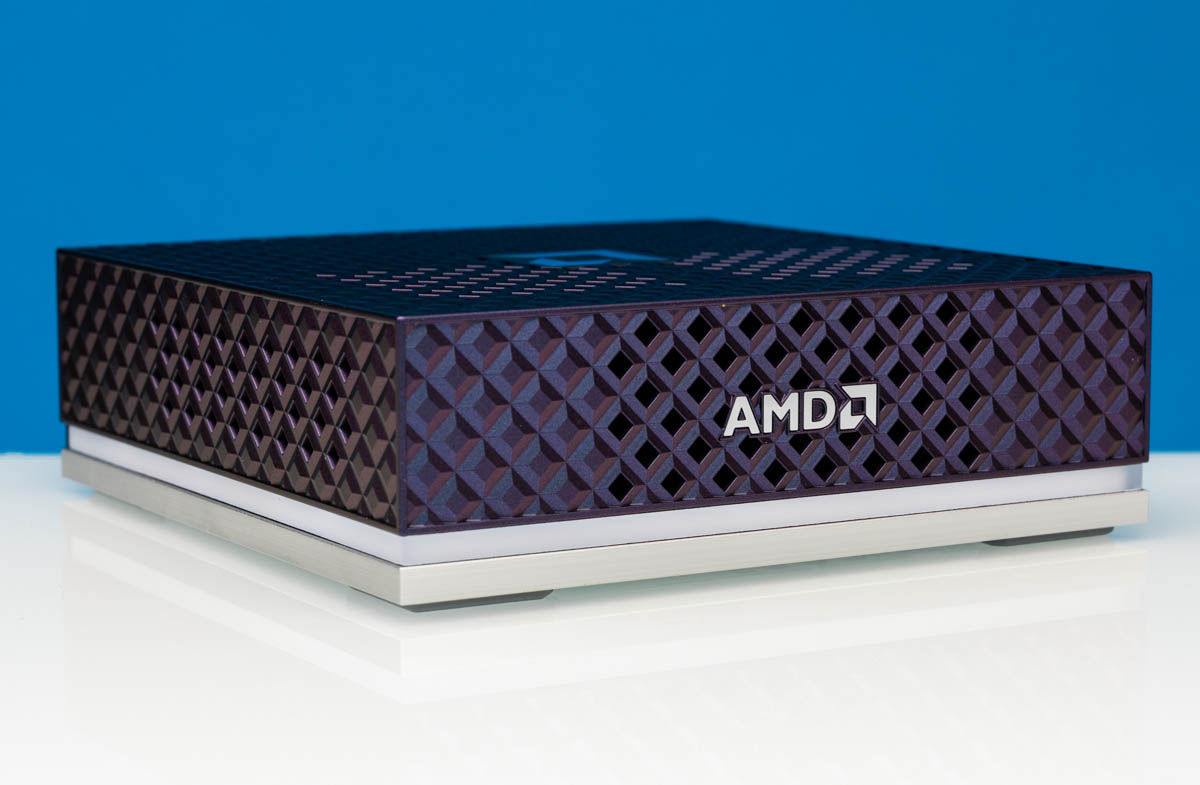
The AMD Ryzen AI Halo is a developer system that the company has been teasing for several months. We have seen it in person and can now share our hands-on thoughts. Let us get the headline out first, then get into the details. For $3999, you get an AMD Ryzen AI Max+ 395 mini PC, roughly in the form factor of the NVIDIA DGX Spark, but without the 200GbE NIC, with 128GB of memory, and what AMD pledges to make its top-tier developer experience. All of those aspects have interesting points, so let us dive into them.
AMD Ryzen AI Halo External Hardware Overview
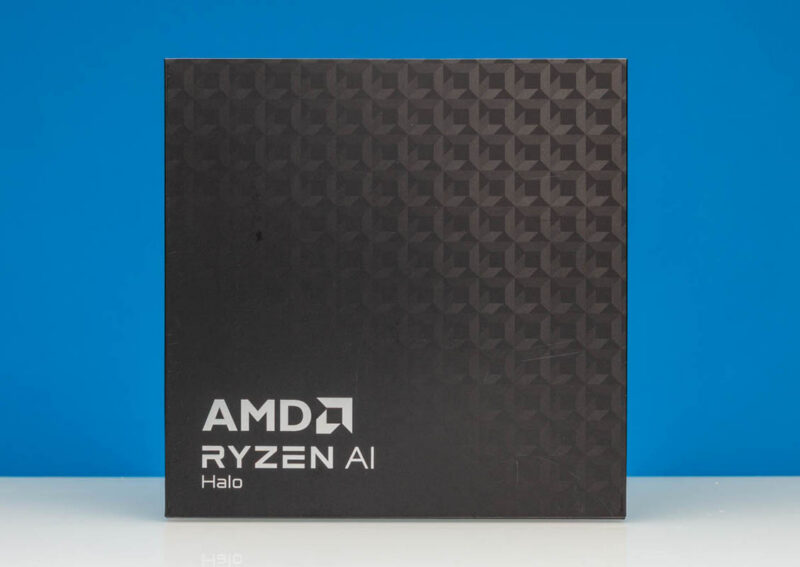
Starting off with the box that AMD sent, we get a neat AMD pattern. Just remember this pattern for a moment until we get to the outside.
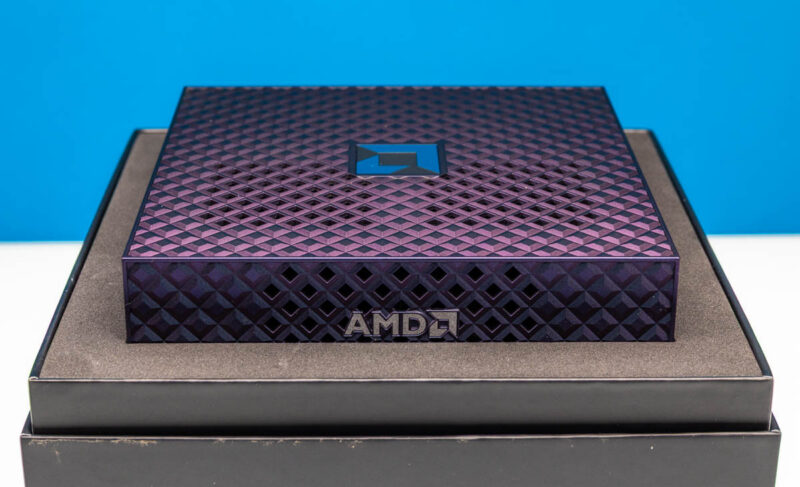
Here is the unboxing experience. You can see the AMD logo on top and in front. It would have been pretty cool if AMD had figured out how to turn these little squares on the outside of the chassis into the logo like the box above. Alas, maybe in a future version.
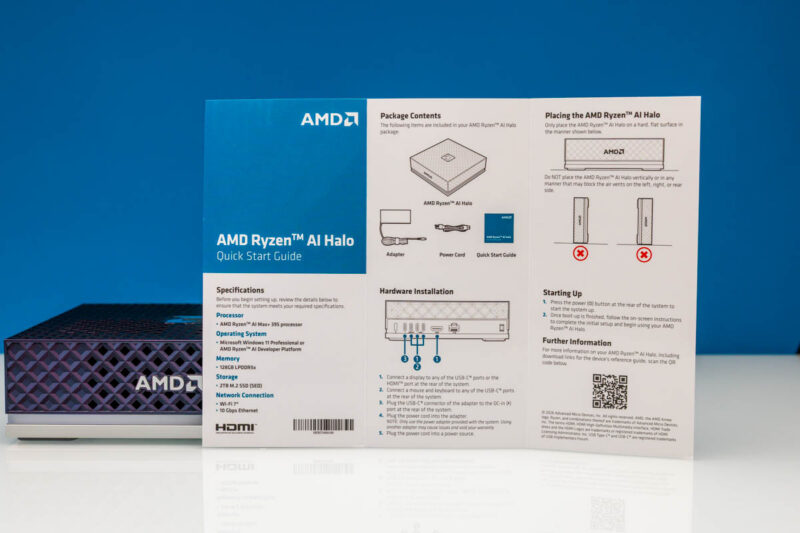
A small but useful feature is the quick-start guide. Some may think this is unnecessary, but since we actually stand the NVIDIA GB10 units on their sides, this is more useful than you might think.
On the front, we get a large air vent behind the AMD logo.
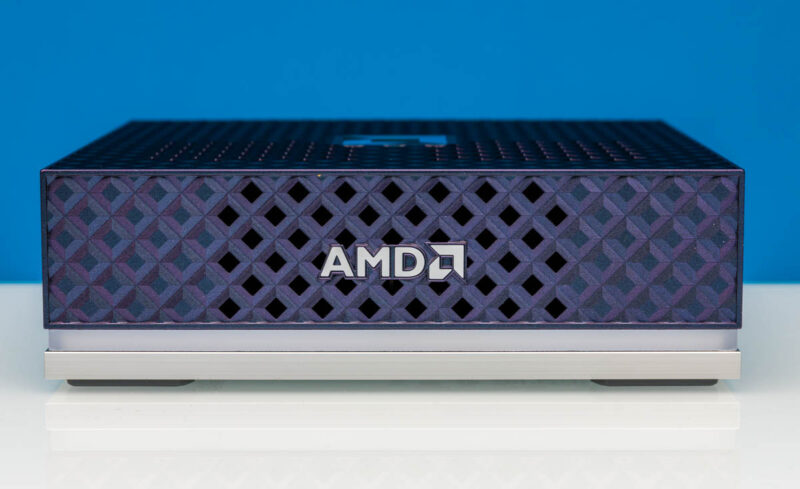
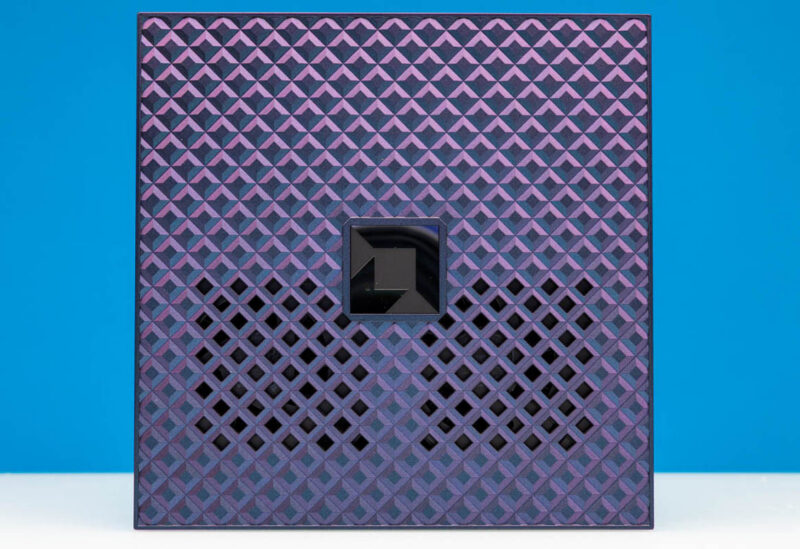
On the top, we get two more air vents for the fans inside that we will see in our internal overview.
The strip between the black plastic and the bottom silver plastic is an RGB strip. We will discuss it a bit more when we get inside, but we figured out one method to disable this if you want to.
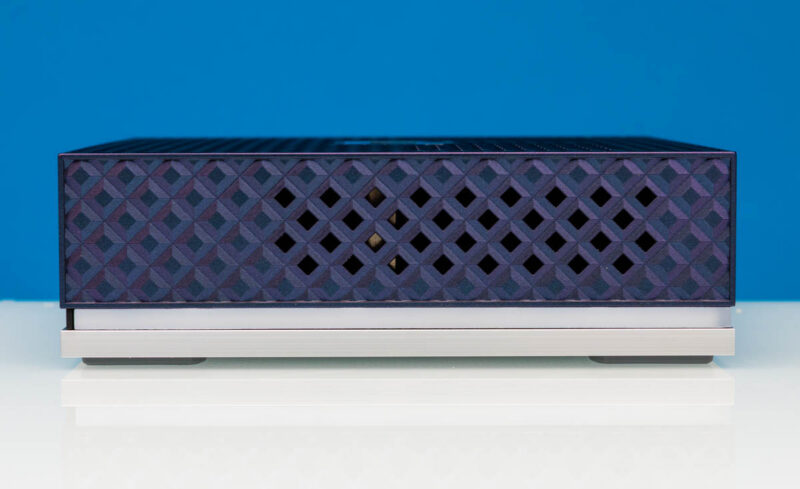
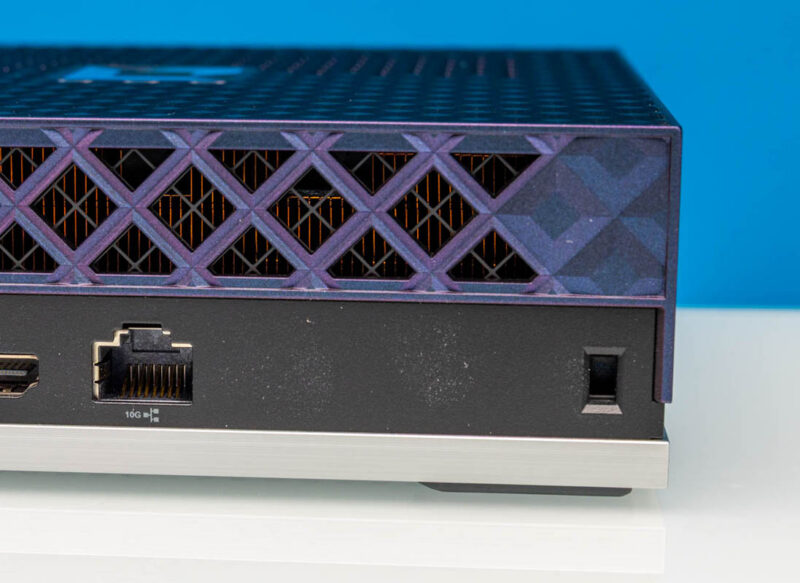
On both sides, there are air vents.
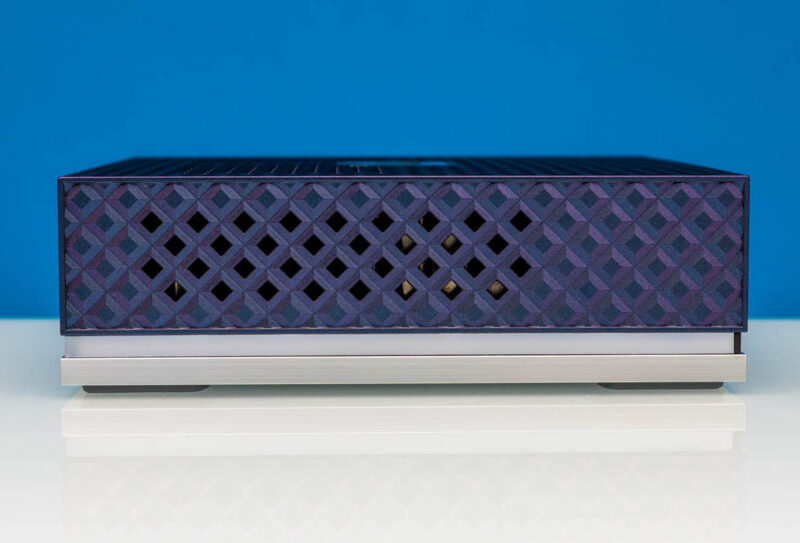
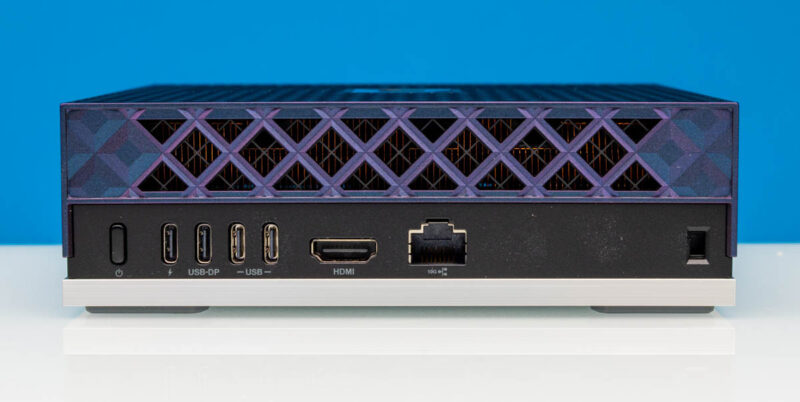
On the back, another air vent, and then all of the ports.
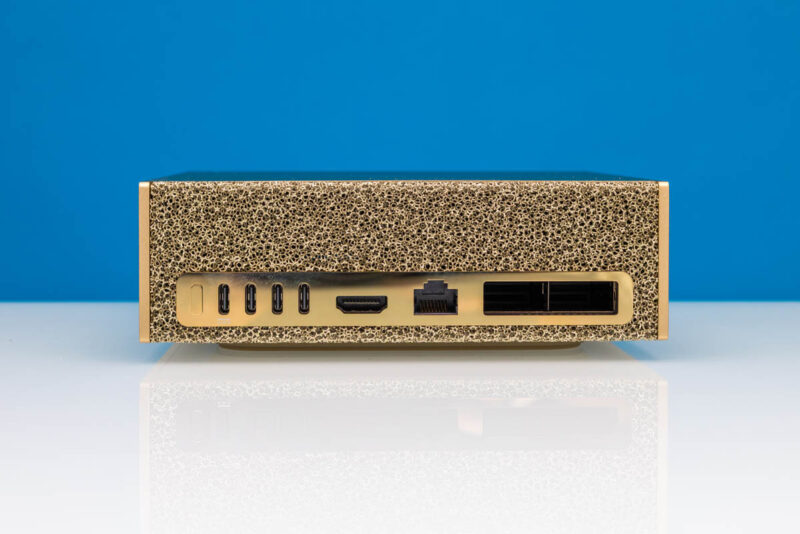
If this looks familiar, perhaps it should, as it feels like AMD was heavily inspired by the NVIDIA GB10 platforms. Here is the NVIDIA DGX Spark as a reference.
On the back, there is a power button, then a power input, then a USB-DP Type-C port, then two more Type-C ports. The USB-DP port is USB 3.2 Gen2 and DisplayPort. The other two USB ports are USB4 ports. It would have been nice if AMD had slightly better labeling here instead of just saying “USB”. There is also a HDMI port.
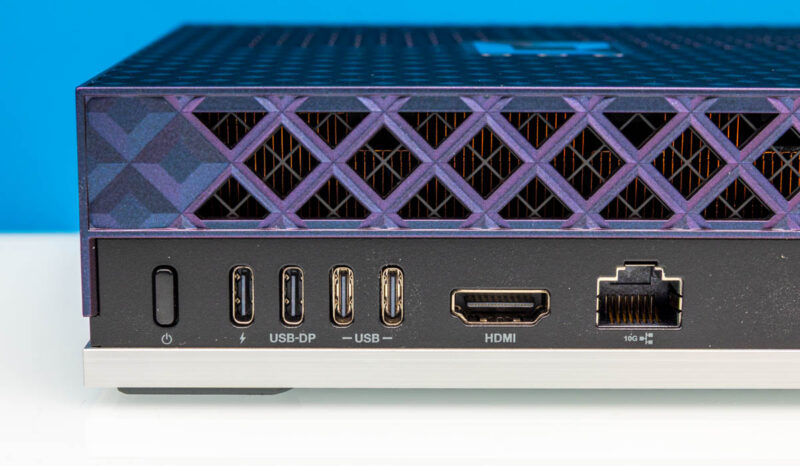
For networking, there is a 10Gbase-T port, but then things diverge from the GB10 systems. Instead of having a high-end NVIDIA ConnectX-7 NIC, albeit a funky one if you have seen our The NVIDIA GB10 ConnectX-7 200GbE Networking is Really Different piece, AMD just omitted the feature. Perhaps that means USB4 RDMA networking in the future. It also means it is hard to get to something like the 8x NVIDIA GB10 cluster. Also importantly, that means you are not learning AMD’s network stack with this.
On the bottom, we get more vents. If you were counting, that is every panel.
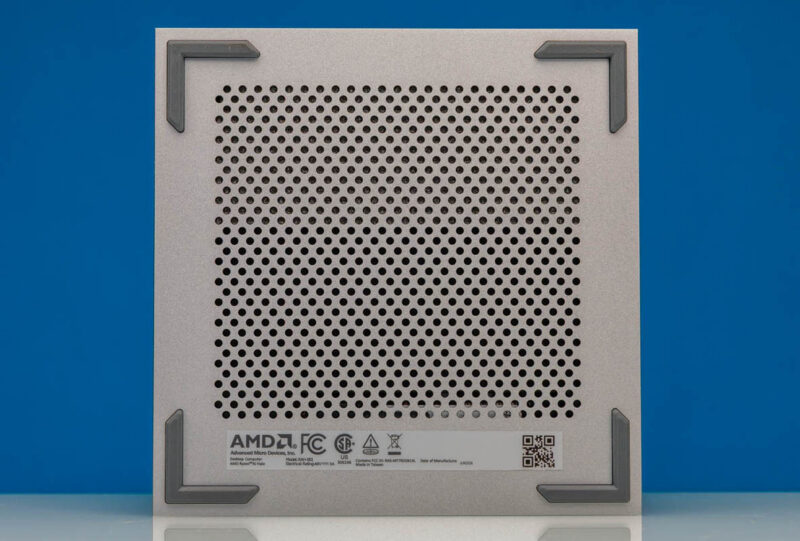
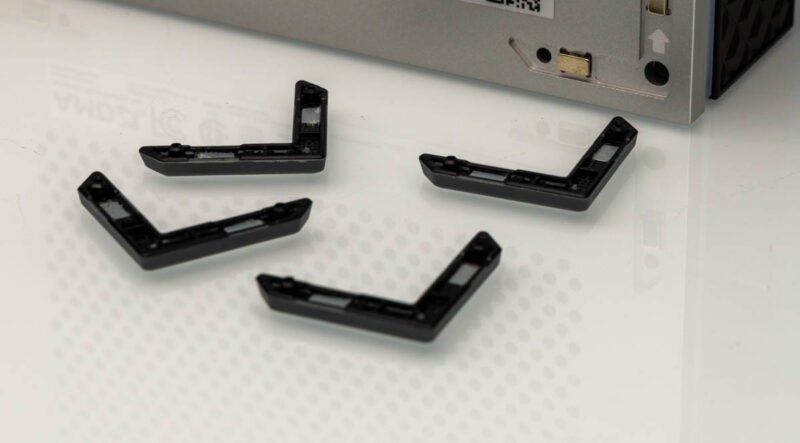
Then there is, perhaps, the coolest physical feature: the rubber feet. These are held in place by magnets, and underneath, there are the screw holes to keep the chassis together. Almost every mini PC we review has adhesive holding the rubber feet in place, even over screws. So if you pull off the feet, you have less sticky adhesive to work with. AMD’s solution is fantastic on this small touch.
Next, let us remove the four screws and open the system.




Does AMD really even have a >10Gb NIC that they can put into these at a reasonable price point, even if they had enough free lanes? I see that they make a AMD Pensando Pollara 400, but they’re not really available on the open market so I can’t tell if it makes sense to put one into a $4k computer. The only one that I can see for sale anywhere is $3,500 on eBay. The bulk of the >100G NICs that get announced these days are DPUs, which really don’t make much sense in this context, and I just can’t see AMD shipping a Mellanox or Intel NIC in this sort of thing.
I really wish they’d included a PCIe slot or, better yet, an OCP slot for BYONetworking. That would let them enable clusters without having to force the connectivity cost onto every customer that doesn’t use it. Does Strix Halo have spare PCIe lanes or is it so narrowly focused that it only allows for an NVMe or two?
It would be nice to compare benchmarks with medium size (20B-50B) dense LLM on this thing to similarly priced Apple offerings with M4 MAX, M5 Pro and/or M5 MAX, alongside a GB10.
I couldn’t see from the pictures, but is the power USB-C wired up for data? My dream device would be compatible with a dock so I could move it around to different sites and only plug in a single cable. I know there was some AI box (one of those DGX Spark boxes, maybe the HP one) that actually listed a data speed on the power port, but I don’t have one to test it with a high power dock.
I couldn’t see from the pictures, but is the power USB-C wired up for data? My dream device would be compatible with a dock so I could move it around to different sites and only plug in a single cable. I know there was some AI box (one of those DGX Spark boxes, maybe the HP one) that actually listed a data speed on the power port, but I don’t have one to test it with a high power dock.
To reinforce Frank’s comment: What would have made this review really useful is a performance comparison with Apple and nVidia boxes.
I’m going to go a step further than Frank and justsomeguy and say that this review is actually useless without performance comparisons against other hardware.
and when you decide to add comparative llm inference benchmarks, may I suggest that you use MLX on Apple hardware, CUDA on NVIDIA and both ROCm and Vulkan on AMD (the results can sometimes be surprising)?
IMHO, this box is a little bit weird, I guess they’re testing the waters for Gorgon Halo and they can do a respin. But releasing a reference platform a year into production is weird. Just buy a Bosgame, GMKTEC or Minisforum, or wait for Medusa Halo.
@Scott Laird
Broadcom do a respectable line of >25G NICs, although they wouldn’t be cheap, or there’s Marvell DPUs.
Or be really weird and follow the methodology of the Mikrotik CCR2004 which is a switch chip with PCIe.
The other Strix Halo machines had dual NVMe, so there’s upto ~40G of PCIe bandwidth available.
This was an amazing review, the hardware part is fantastic and so brave. I don’t care for RGB but if I messed up that flat cable I would cry! 3999 USD for 128GB of ram pretty much. I don’t see how it’s any better than the mini pcs with the same specs.